ON THIS PAGE:
The Search page gives you the option to find Entries, Tags, Pages, Trends and Entities.

You can open the Search page using any of the following options:
- Click the Search option on the Home tab of the Explorer ribbon.
- Use the search bar in the header.
- Click the Search icon in the sidebar.
Overview of the Search Page
The Search page contains a common search bar, a set of search tabs, and a results section. When you switch between tabs, the text in the search box remains unchanged.
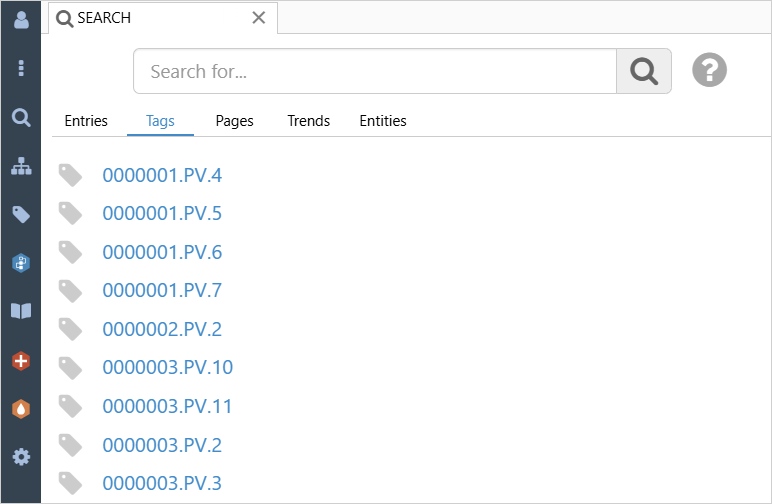
When you select the Tags, Pages, Trends, or Entities tabs, the search results window displays the corresponding results, and you can click any item in the list to open it.
Search results for private pages and trends will display the Display Name of the user who owns them. This allows Explorer Administrators to easily identify the owner of a private page or trend.
Searching Entries
For Entries, the search results section is divided into two parts: the search criteria on the left and the results on the right.
The search will look across all fields that have the Text type, such as Title and Description. It will also search within the Entity Field, so any entries mentioning your text there will be included in the results.

You can use the following criteria when searching for entries:
| Search Range | Some predefined search ranges have been added for ease of use. Note that what is included in the search range varies depending on the type of entry.
Case/General Entry: For Cases and General entries, the results will check the Status field and will include the entry if the status is not Closed for part or all of the search range (i.e. the entry is open). |
| Entry Type | You can restrict the search results by selecting specific entry types. Available options include Case, Comment, Issue, Availability, Gain and Loss. |
| Sort Results By | You can sort the results by selecting one of the fields. |
| Filter Results By | You can further restrict the search results by applying one or more filters. This works in the same way as filtering logs, except that you cannot save search filters here. Read more: Filtering Logs |
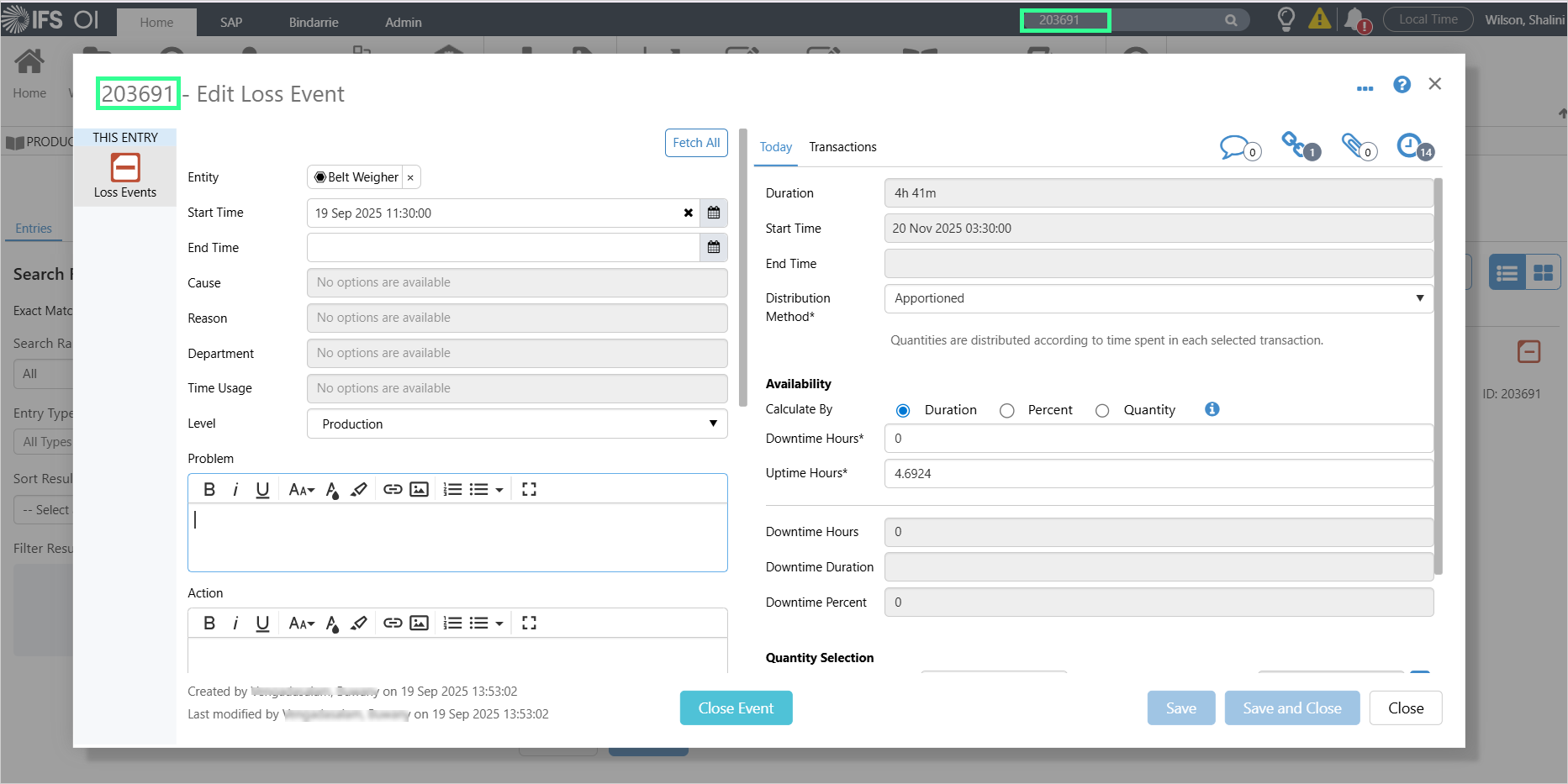
Entering an ID in the search field will open the relevant entry dialog for the ID. When the dialog is closed, the search page will display all the results that contain the ID in any text field, and the entry.
Exact Match Option
When you search entries, the algorithm that matches text fields to terms resembling your search phrase can sometimes return too many results or create the impression of incorrect matches.
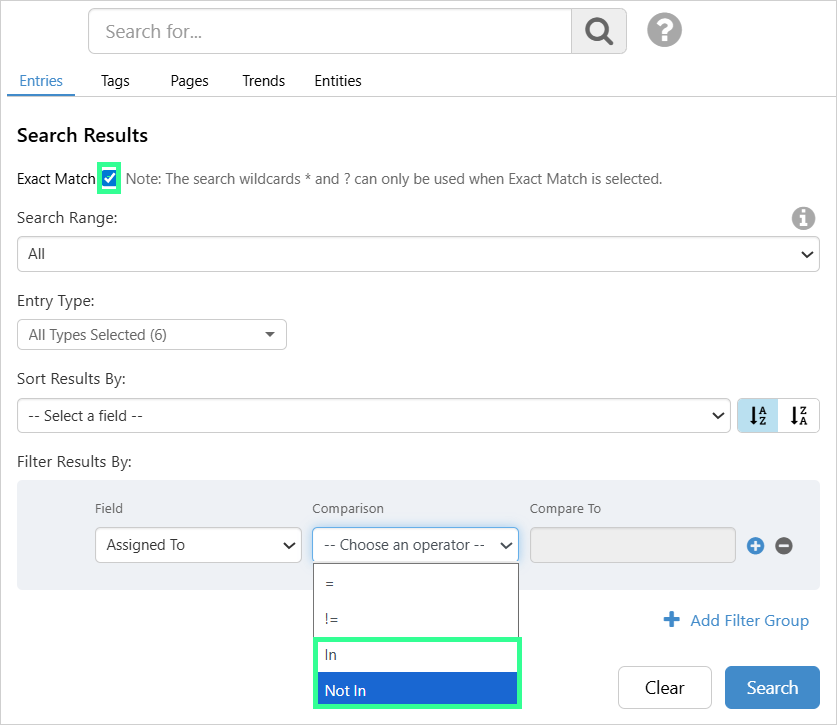
To narrow your results, use the Exact Match option. This ensures that only entries containing the exact phrase you entered are returned.
You can also achieve similar precision in filters by selecting the In or Not In comparison operators for text fields.
Search Results in Entries
Search results are presented in two views: list view (this is the default) and grid view.
List View shows the search results in a list, with the Title, Description, ID, and entry type icon.

Grid view shows the search results in a table format, with the following columns: Form, Type, Status, Created By, Created Date, and Description.

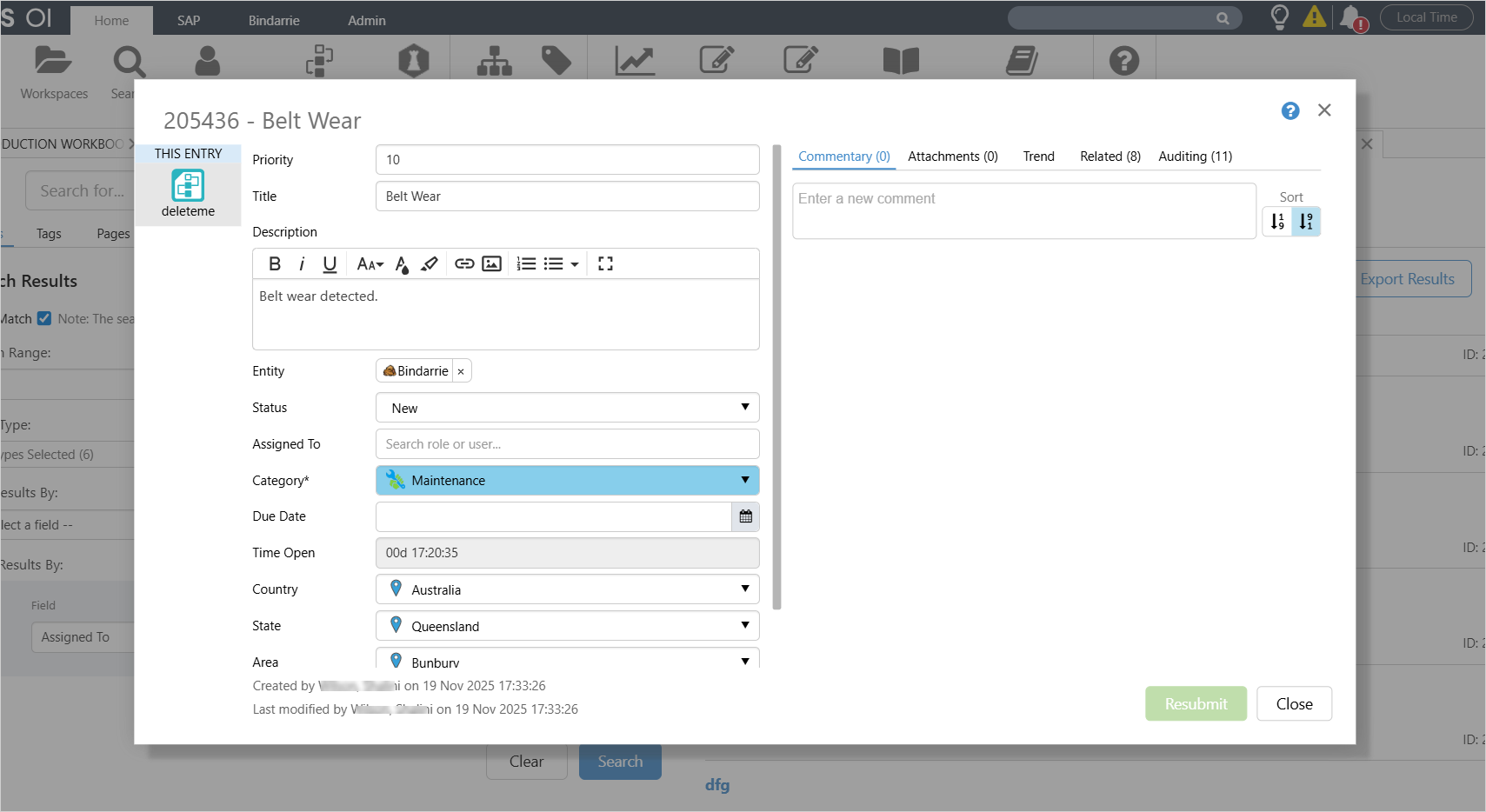
When you click an entry returned from a search, in either list view or grid view, the Edit Entry dialog opens, giving you immediate access to all entry options, including adding attachments.
Exporting Results
Click the Export Results button at the top of the results section, to download a .csv file, which you can save to your computer.

Note that multi-line text fields will contain HTML markup tags.

Searching Tags
On the Search page, click the Tags tab to search for tags. Tags with names or descriptions matching your search term will appear in a list.
The search term is matched against the Tag name and description, and returns results in the following order:
- Tag names that start with the search term, then
- Tag names that contain the search term, then
- Tag descriptions that contain the search term.
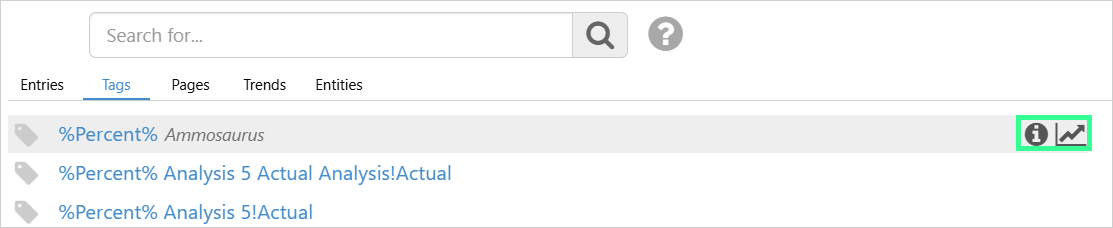
To open a tag’s Point Details, hover over the row and click the information icon. You can also open the Point Details by simply clicking on the row.
To open a trend for the tag, hover over the row and click the trend icon.
Clearing a Search
Click the little X in the Search box to clear the search results and the search box.

Searching with Wildcard Filtering
All search functions in Explorer have wildcard filtering capabilities for tags and entities, allowing you to search for patterns, as an alternative to the regular simple text match.
For the search page, this means you can search for tag names and descriptions using wildcard symbols.
Note: If you use any wildcards in your search phrase an exact match search type will be performed. This means all missing characters in the search term must be replaced by a wildcard symbol.
Using Asterisks
Use an asterisks (*) at any position in the search text, to search for patterns that contain one or more alpha-numeric values.
The asterisk can be used in place of one, none or multiple missing characters, and must be inserted everywhere characters are missing.
Search results match the search term text that is before or after the asterisks.
For example the search term :
- ‘*900’ will return search results ending in ‘900’ (such as 12350900, ‘ABC900’, ‘989hhh900’, etc.).
- 'coast.201.*025*' will return results that may have other characters before and after '025'. The asterisk is required at the end of the search term when '025' is not the last three digits of the tag.
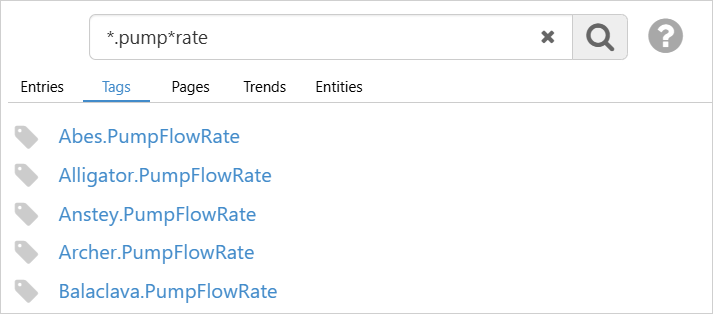
- ‘*.pump*rate’ returns results that contain alpha-numeric values before and after ‘.pump’, that end with ‘rate’ (such as ‘Abes.PumpFlowRate’, ‘Alligator.PumpFlowRate’, etc.).
Using Question Marks
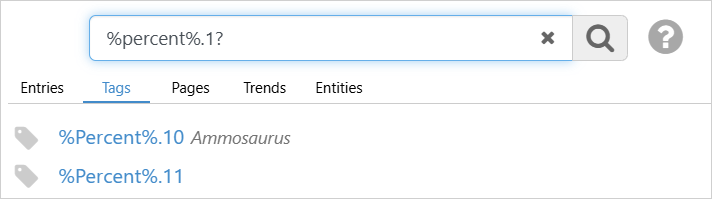
Use one or more question mark characters (?), to limit replacement text to one alpha-numeric character per question mark symbol.
Examples Using One or Both Symbols
You can also use a combination of asterisks and question marks, as shown in the table below.
| Search String | Valid Search Results |
| RT??MN | RTABMN RTW1MN RT12MN |
| *99?2?4 | Hello991234 ABCDEFG99H2I4 A99Z2S4 |
| Pump*8? | Pump000981 PumpXYZ12383 Pump8888880 |
Release History
- Search Page 4.21
- Search Page 4.16
- Display Name in Search results for private pages and trends.
- Search Page 4.11
- Tag Search order of results.
- Search Page 4.10.2
- Search for an Entry by its ID.
- Search Page 4.10.1
- Open an Entry Dialog from an Entry Search.
- Search Page 4.10
- Entity Field matches in Entries Search.
- Search Page 4.9.10
- Combined Search for Entries, Tags, Pages, Trends and Entities.
- Search Page 4.9.4
- Exact Match option in Entries Search and Filters.
- Search Page 4.5.4
- Wildcard Search filtering for tags and tag descriptions.
- Search Page 4.4.6
- Search now appears in a tab.
- Trend icons used to show the default page thumbnail; now they show the default trend icon.
- Search Page 4.4.5